
Keep both screens vertical, centered, eye-level, shoulder-width apart, and slightly toed-in.
If you care about pain-free work, stay here. I’ll show how to arrange dual vertical monitors for zero neck twist with clear steps, pro tips, and fixes I learned the hard way. You will leave with a setup that feels natural, looks clean, and supports long focus without strain.
The ergonomics behind a zero-twist setup
Good posture is simple. Your eyes face forward, your neck stays neutral, and your shoulders relax. Your screens should support that, not fight it.
Understanding how to arrange dual vertical monitors for zero neck twist starts with anatomy. Your neck is happiest when your gaze sits level, and your head does not turn. The goal is straight-ahead viewing, with small eye moves and tiny head moves only when needed.
Research shows less neck rotation lowers fatigue and pain risk. Short viewing distance can cause eye strain, while long distance can trigger a forward head tilt. We will balance both.
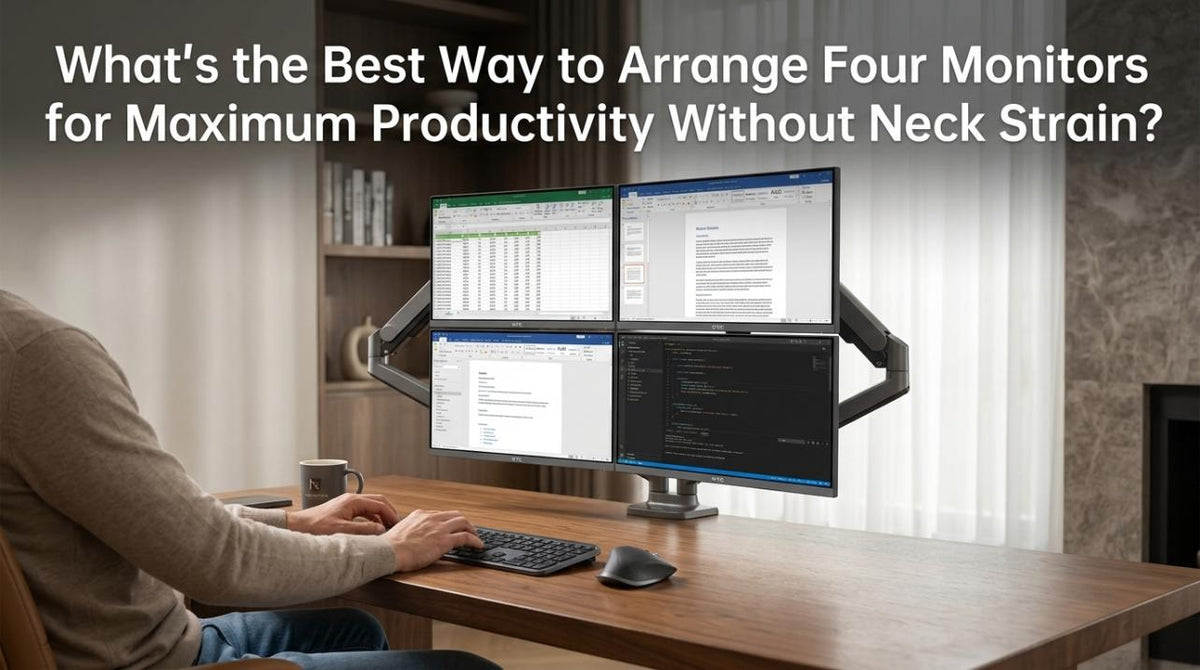
Source: ktcplay.com
Step-by-step: physical placement and angles
Your desk, chair, and screens work as one system. Set them in this order for fast wins.
- Set chair height so your elbows are at 90 degrees on the desk.
- Sit back in the chair with your back supported.
- Place the monitor pair on center, not off to one side.
- Keep the gap between display centers close to shoulder width.
- Toe-in each screen 5–10 degrees toward your nose bridge.
- Keep the inner bezels close, about a finger-width apart.
- Nudge the pair so the midpoint sits right in front of your face.
- Fine-tune until your head stays still when you read the center.
- Lock mounts and check the view from your relaxed posture.
Here is how to arrange dual vertical monitors for zero neck twist in nine simple steps. Small angle changes give big comfort gains. Move in small increments and test.

Source: ktcplay.com
Monitor height, bezel alignment, and eye line
Your eyes should meet the vertical center of the content area. For most people, that is a hair below eye level. This prevents chin tilt and keeps the neck stacked.
A key rule in how to arrange dual vertical monitors for zero neck twist is neutral neck at rest. Align the inner bezels so text jumps cleanly across the split. If one monitor is even a few millimeters higher, your neck will notice.
Tips I use in my home lab:
- Tape a string from your nose to the bezel line to check symmetry.
- Use a bubble level on top of each monitor for fast alignment.
- If your mount sags, shim it or tighten the joint.
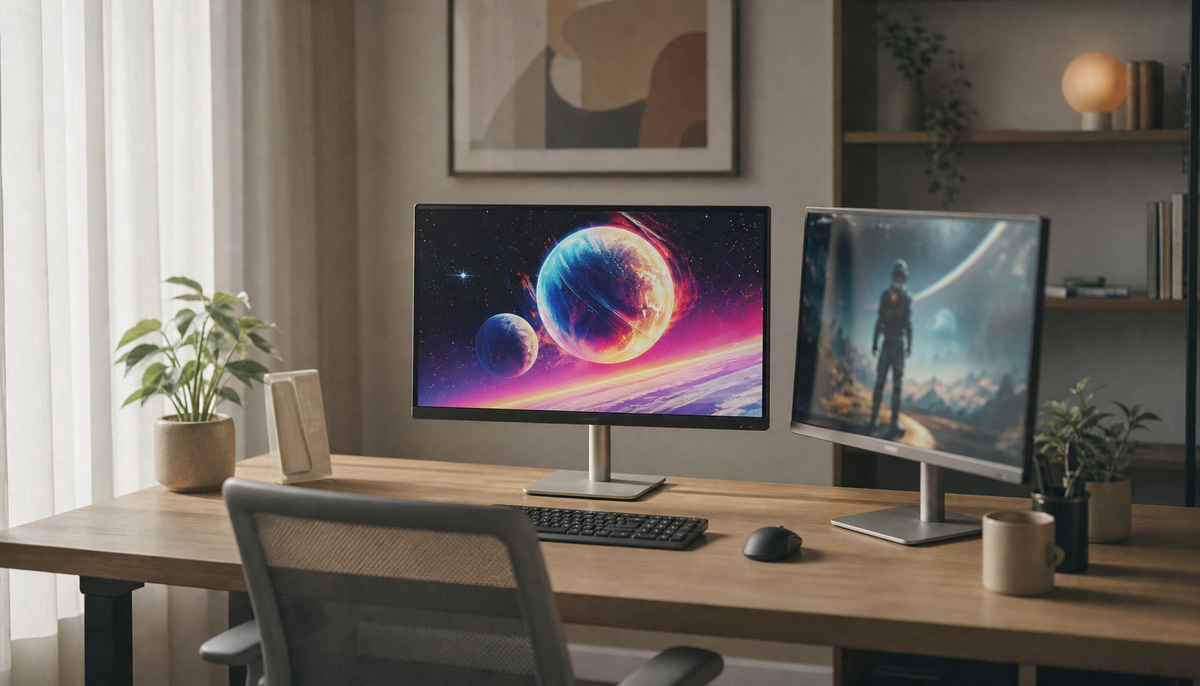
Source: ktcplay.com
Optimal viewing distance and field of view
Distance sets both comfort and clarity. A good range is arm’s length to 28–32 inches, measured from the nose to the screen center. Adjust based on screen size and your vision.
A practical way to test distance is the “blink and read” check. Close your eyes, relax your neck, open, and read small text. If your head jumps forward, the screens are too far. If your eyes feel tight, they are too close.
How to arrange dual vertical monitors for zero neck twist also means seeing all corners without turning your head. If you must twist to see the top or bottom, shift distance or reduce toe-in.
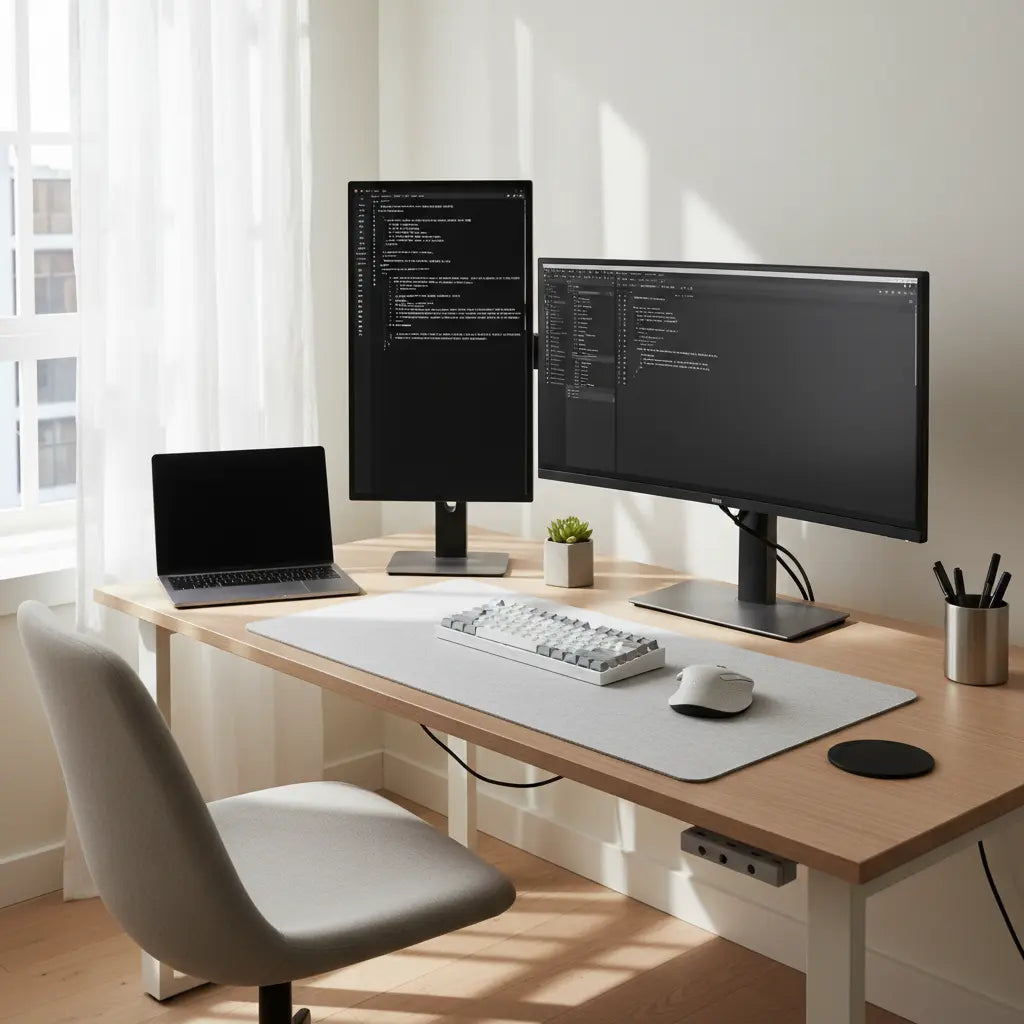
Source: bestier.net
Software layout and workflow mapping
Your window layout should match your gaze pattern. Put the most-used app where your eyes rest. Keep reference material on the other screen.
Workflow choices affect how to arrange dual vertical monitors for zero neck twist. For coding, I keep editor lines wide and tall on the main screen and logs on the second. For design, I place tools on one and a canvas or preview on the other. For writing, I draft on the right, research on the left.
Helpful tweaks:
- Enable focus mode or reading view for long text.
- Raise line height and set a calm font.
- Use window snapping to avoid drag-and-peek loops.
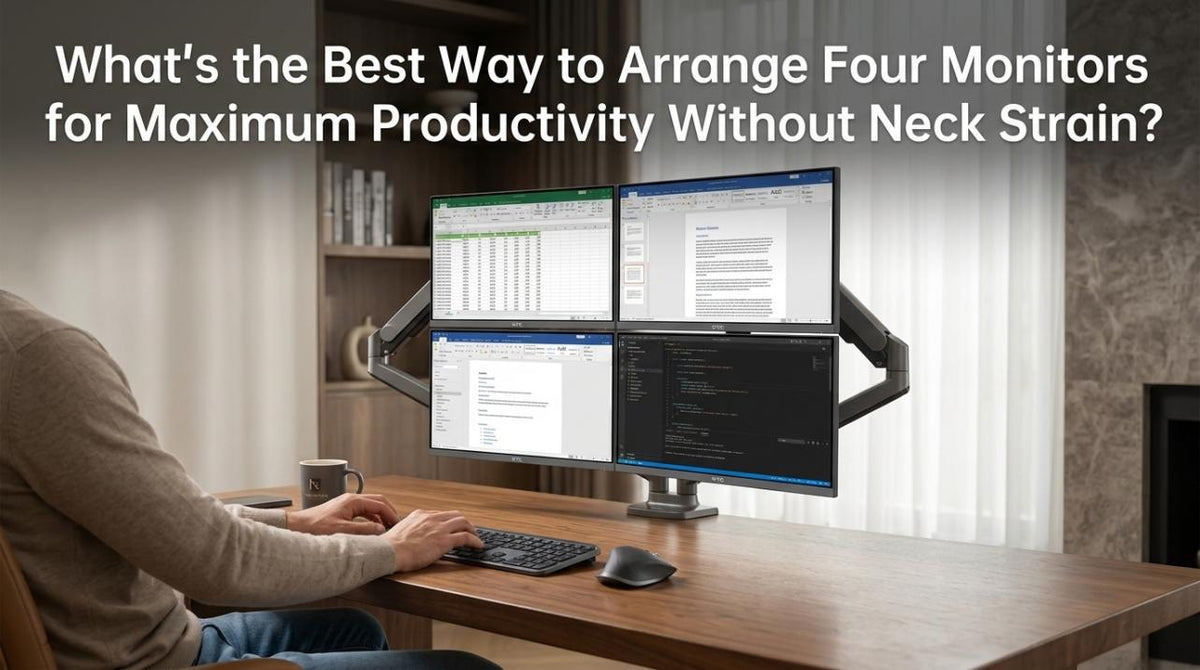
Source: ktcplay.com
Mounts, arms, and desk constraints
Arms make small moves easy. They also free desk space and help symmetry. Choose gas-spring arms with strong tilt and height control.
Mounts define how to arrange dual vertical monitors for zero neck twist in tight spaces. Check VESA size, weight rating, and clamp depth. For deep desks, a dual-post mount can hold both screens dead center.
Hardware tips from field work:
- If your desk is thin, add a backing plate under the clamp.
- If arms drift, increase spring tension one quarter turn at a time.
- Use a rigid crossbar if your screens never stay aligned.

Source: bestier.net
Lighting, glare, and color accuracy
Glare makes you crane and squint. That causes twist over time. Keep bright windows to your side, not behind or in front of you.
Glare control is part of how to arrange dual vertical monitors for zero neck twist. Use a bias light behind the screens to lower contrast and eye strain. Set brightness to match room light. If color matters, calibrate once a month and keep both panels at the same settings.
Quick wins:
- Use matte screens or add an anti-glare film.
- Angle lights so they miss the panel surface.
- Choose 4000–5000K task lights to reduce harsh blue.
Source: ktcplay.com
Cable management and desk space that helps posture
A clear desk makes centered posture easy. Hide cables so you can nudge screens without snags. Route power and display lines along the arms and down the rear leg.
I use Velcro ties, not zip ties, so changes are fast. Keep a spare inch of slack near the hinge points. That prevents tugging that shifts angles and breaks your careful alignment.

Source: eurekaergonomic.com
Test, tune, and track comfort over time
Set a calendar nudge for a weekly 2-minute check. Look straight ahead and scan top to bottom, then left to right. If your head moves more than a tiny nod, adjust.
Test and tune: how to arrange dual vertical monitors for zero neck twist for your body is a loop. Bodies change over a day. Heat, fatigue, and glasses all matter. Keep small notes: distance, toe-in, and height. Over a month, you will find your sweet spot.
Mistakes to avoid and myths to skip
Common errors in how to arrange dual vertical monitors for zero neck twist include:
- Centering one screen and pushing the other far to the side.
- Setting height by stand limits, not by eye line.
- Ignoring glare until your neck tenses.
- Over-rotating screens inward so you must tilt your head.
Myths to skip:
- “Lower is safer.” Too low makes you slump.
- “Closer is sharper.” Too close strains eyes and narrows view.
- “Perfect symmetry is enough.” Comfort still needs testing.
Daily habits that keep your neck happy
Gear helps. Habits seal the deal. Use the 20-20-20 rule: every 20 minutes, look 20 feet away for 20 seconds. Stand, roll shoulders, and breathe.
Daily habits can lock in how to arrange dual vertical monitors for zero neck twist. Map a single hotkey to center your active window. Reduce mouse travel with short throws and higher pointer speed. Small friction cuts add up.
From my own routine:
- I run a posture timer on my watch.
- I stretch traps and do chin tucks twice a day.
- I reset screen angles after anyone else uses my desk.
Frequently Asked Questions of how to arrange dual vertical monitors for zero neck twist
Should I center the split or one screen?
Center the split. Your nose should line up with the gap between the two screens. This keeps both sides within a tiny head turn.
What angle should each screen face?
Toe-in each screen about 5–10 degrees toward your face. Stop when you can read the top and bottom without turning your head.
How high should vertical monitors be?
Set the vertical midline a touch below eye level. Your chin should stay level when you read the middle of the screen.
What distance works best for tall screens?
Aim for arm’s length to about 28–32 inches. Adjust for size and vision so you can scan the full height with minimal head movement.
Can I mix different monitor sizes?
Yes, but match pixel density and brightness if you can. Align the inner bezels and visual midlines so text flows cleanly across.
Do I need a dual arm, or will stands do?
Stands can work if they allow height and tilt control. Arms make micro-adjustments easy and help you keep symmetry over time.
How do I avoid glare on tall panels?
Place lights to the side and use a bias light behind the screens. Reduce brightness to match room light and add anti-glare film if needed.
Is portrait mode bad for gaming or video?
It is not ideal for most games or video. Use one vertical screen for work and keep a secondary landscape screen if media is a priority.
What if my desk is shallow?
Use arms with slim clamps and short extensions. Sit a bit closer and reduce toe-in so you can scan without twisting.
How do I know I’m not twisting?
Close your eyes, relax, and face forward. Open and read. If your head turns to find the center, nudge the pair until it does not.
Conclusion
You now know how to arrange dual vertical monitors for zero neck twist with clear, repeatable steps. Center the split, match height to your eye line, dial in toe-in, and test often. Small changes beat expensive gear when they fit your body.
Put these tips to work today. Take five minutes, make two tiny tweaks, and feel the difference by lunch. If this helped, share your results, subscribe for more ergonomic wins, or drop a question so I can help you tune your setup even further.


