
This Complete Ergonomic Desk Setup & Posture Guide walks you through every part of your setup. A good desk setup should feel like a well-fitted suit. It should move with you, not against you. You should sit or stand with ease. Your hands should float to the keyboard. Your neck should stay long. Your back should feel calm, even on long days. That is what an ergonomic desk setup does. It helps your body do its best work, with less strain and more focus.
You will learn how to sit. You will learn how to stand. You will learn where to put your screen and your keyboard. You will see how small changes help big pain points, like neck aches, back pain, and sore shoulders. You will get checklists and quick wins. You can use them today. By the end, your desk will fit you better than ever. And your body will thank you.
What Is an Ergonomic Desk Setup?
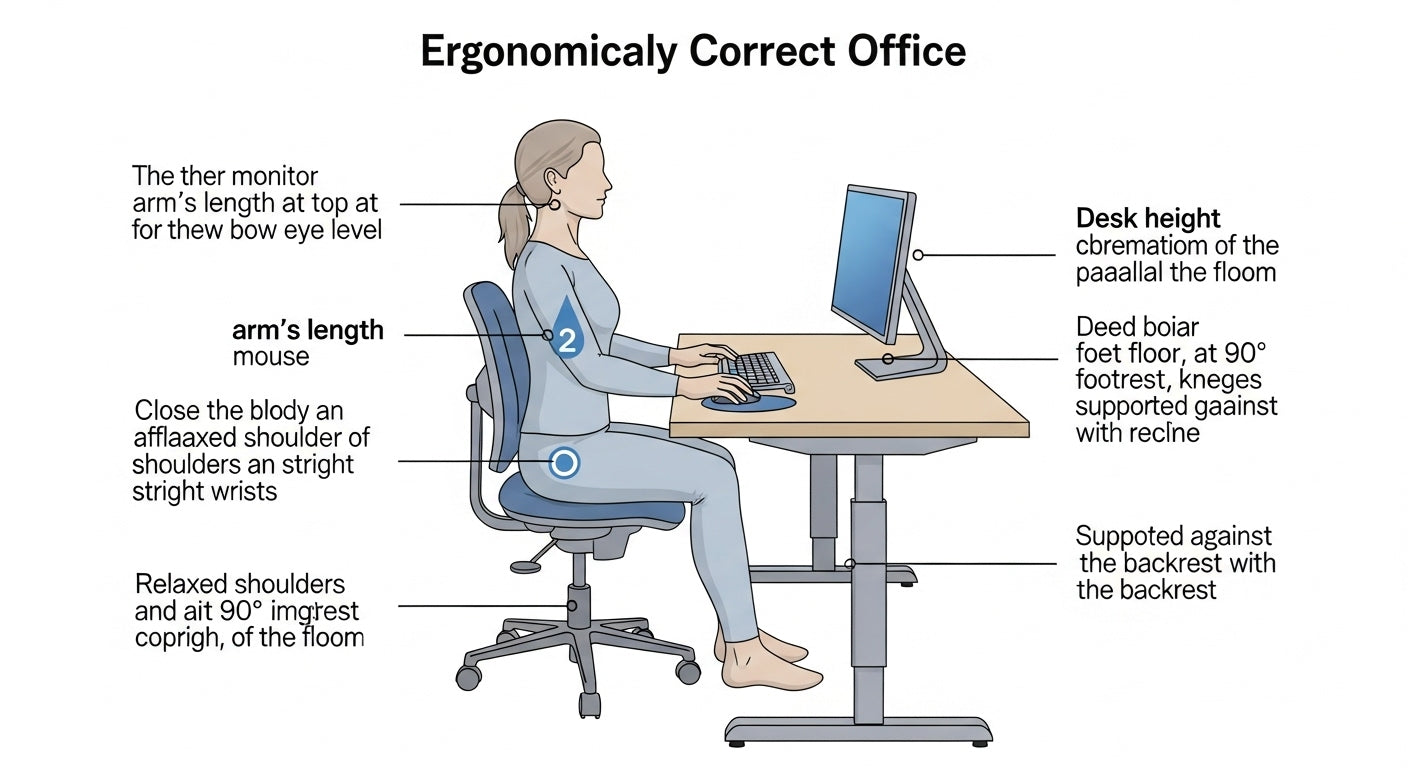
An ergonomic desk setup means your workspace is set up to fit your body, not the other way around. Everything is placed so you can sit comfortably without bending, stretching, or straining too much. When your desk, chair, and screen are in the right position, your body stays relaxed, and you feel less tired or sore—even after long hours of work.
The Core Goals
The core goals are simple. Stay in a neutral body position as much as you can. Keep your joints in mid-range. Reduce reach and twist. Keep your eyes, arms, and spine at ease. Place tools where your hands can find them fast. Cut clutter and friction. Make your setup easy to adjust.

- Neutral spine, not stiff, not slumped
- Joints at open angles, not sharp bends
- Minimal reach for high-use items
- Clear line of sight to screens and documents
- Smooth changes between sitting and standing
- Lighting that helps your eyes, not fights them
Key Principles of Neutral Alignment
Neutral does not mean rigid. It means your spine holds its natural curves. Your neck is tall, not craned. Your shoulders rest, not lifted. Your elbows hang close, not winged out. Your wrists align with your forearms. Your hips tilt a bit forward, not tucked under.

- Keep your head stacked over your shoulders
- Relax your shoulders down and back
- Let elbows rest at about 90–110 degrees
- Keep wrists straight as you type and click
- Sit with hips slightly higher than knees
- Keep feet flat and supported
Common Myths to Skip
There are many desk myths. One is that you must sit at 90-degree angles at all times. That is not true. Your body likes small moves and open angles. Another myth says a standing desk solves all pain. It does not. Standing helps but it is not a cure. A third myth says one setup fits all. That is not true either. We are all different, so adjust for you.

- 90-degree posture is not the only safe angle
- Standing all day is not the goal
- One chair or desk cannot fit every person
- Pain is not normal at work; it is a cue to adjust
### Quick Wins You Can Do Today
You can fix small issues fast. Many need no new gear at all. Try a few now. See how your body feels after.

- Raise your screen so the top line is at or slightly below eye level.
- Lower your chair so your feet lie flat, or add a footrest.
- Slide the keyboard close so your elbows stay near your sides.
- Move the mouse next to the keyboard, not far away.
- Dim the screen and boost text size to ease eye strain.
- Set a 30–60 minute timer to stand and move.
- Use a rolled towel for quick lumbar support.
- Clear your knee space under the desk.
Ideal Ergonomic Sitting Posture for Desk Work Guide
Sitting is not bad. Sitting with strain is bad. Good sitting posture feels light and stable. Your ear, shoulder, hip, and ankle should stack in a soft line. Your chair should do most of the holding, not your muscles. Make small moves often. Change your sit every 20–30 minutes.

Neutral Spine Setup
Start with your seat height. Then add support for your lower back. Adjust the armrests. Check the screen and the keyboard. The order matters. It helps every part line up.

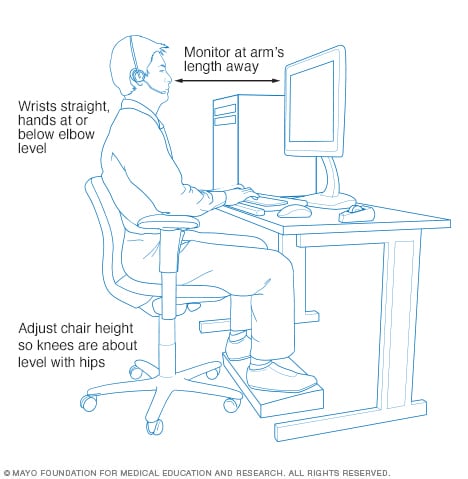
- Raise or lower the chair so knees are at or just below hip height.
- Use lumbar support to fill the curve in your lower back.
- Keep 2–3 finger widths between the seat edge and the back of your knee.
- Set armrests so shoulders relax; forearms rest without shrugging.
- Keep the keyboard near so elbows stay tucked.
Pelvis and Hips
Your pelvis is the base. If it slumps, the rest follows. Set your pelvis first. Then build the rest on top of it.
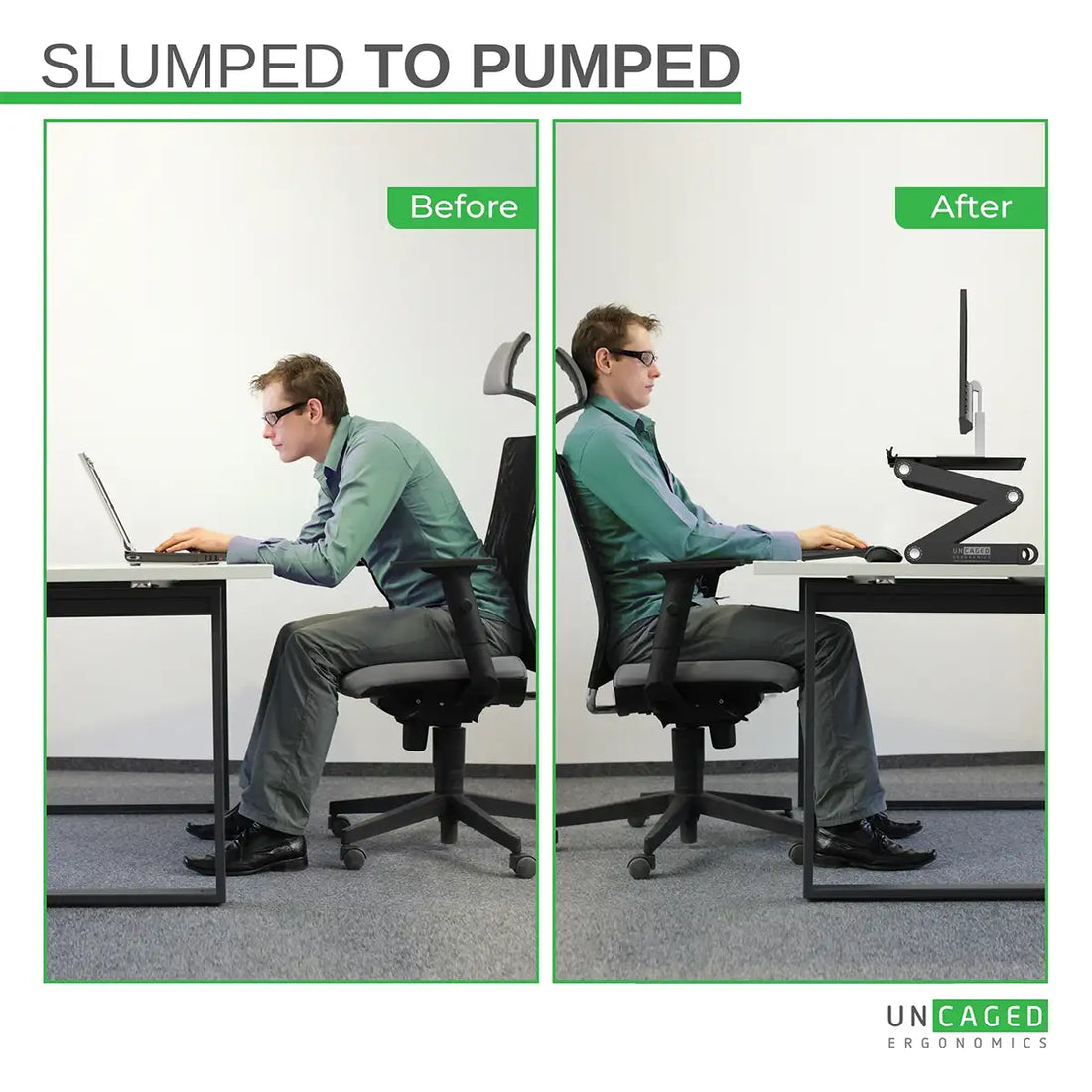
- Sit on your sit bones, not the tailbone.
- Tilt the seat pan a touch forward if your chair allows.
- Keep hips a bit higher than knees to reduce flex in the low back.
- Avoid perching on the front edge for long periods.
Feet and Legs
Feet on the floor make the whole chain stable. When your feet are stable, your hips and back relax. This lowers strain up the spine.
- Keep both feet flat on the floor or a footrest.
- Do not tuck your feet under your chair.
- Keep thighs level with the floor or sloping slightly downward.
- Leave space to move your legs and avoid crossing them for long.
Shoulders, Elbows, and Wrists
Your hands do the work, so support your arms. Keep things close. Align the wrist with the forearm. This cuts strain while you type and mouse.
- Drop your shoulders; keep them down and back, not hunched.
- Place the keyboard so elbows are near your sides.
- Keep wrists straight and float lightly, or use a soft wrist rest for pauses.
- Avoid bending the wrist up (extension) while typing.
Head and Eyes
Your neck should not hold your head up all day. Your screen should help. Place it so your eyes can read without a crane or a tilt.
- Keep the top of the screen at or just below eye height.
- Sit at an arm’s length from the screen (about 20–30 inches).
- Angle the screen to reduce glare and avoid reflections.
- Enlarge text to avoid leaning in.
Ergonomic Desk Height and Workspace Layout
The right desk height keeps your shoulders loose and your wrists straight. The right layout keeps your tools near. This means less reach and twist. It leads to less stress on your joints. Your body feels calmer and you work faster.
Find the Right Desk Height
Desk height depends on your body, chair, and footwear. The goal is simple. Keep your forearms level or slightly down. Keep your shoulders relaxed.
- For most people, seated desk height chart lands near 25–30 inches (63–76 cm).
- If you are shorter, consider a keyboard tray or raise your chair with a footrest.
- If you are taller, raise the desk or use an adjustable desk.
- In standing, desk height should meet your elbows at about 90–100 degrees.
Optimal Reach Zones
Place tools by how often you use them. This stops long reaches that strain your shoulders and back.
- Primary zone (close): keyboard, mouse, and main input devices.
- Secondary zone (near): phone, notebook, and a pen.
- Tertiary zone (far): files, printer, and infrequent items.
- Use a document holder near the screen to keep your neck in line.
Clearance and Surface Management
Open space lets you sit close to your work. It cuts reach and twisting. It also helps your legs move.
- Keep at least 18 inches (45 cm) of knee depth.
- Clear trash cans and boxes from under the desk.
- Route cables to avoid foot snags.
- Use desk mats or cable trays to keep surfaces tidy.
Monitor and Screen Position for Proper Posture
Good screen setup saves your neck and eyes. The right height and distance help your head stay tall. The right angle cuts glare. The right settings help your eyes relax. Your focus stays sharp for longer.
Distance and Height
Your screen should meet your eyes. It should not force you to lean in or crane your neck.
- Place the screen about an arm’s length away, 20–30 inches for most.
- Set the top of the screen at or slightly below eye height.
- Tilt the screen back 10–20 degrees to match your gaze.
- If you wear bifocals, lower the screen a bit more to avoid neck extension.
Dual Monitor Layouts
Two screens can help or hurt. It depends on how you place them. Balance your neck movement. Keep your main tasks clear.
- If you use one screen most, center it. Place the second to the side at the same height and distance.
- If you use both equally, center them angled like a shallow “V.”
- Keep edges as close as possible to reduce head rotation.
- Match brightness and scale so your eyes do not keep adapting.
Laptop Use
A flat laptop on a desk invites a hunched neck. You can fix that with small changes. Raise the screen and split the input.
- Use a laptop stand or a few books to raise the screen to eye height.
- Add an external keyboard and mouse to keep arms neutral.
- If you must use the laptop only, take more breaks.
- Use voice input for long text to reduce time on keys.
Image Quality, Glare, and Text Size
Eye strain slows work and adds headache risk. You can fix this with simple tweaks.
- Set brightness to match your room light; avoid a bright screen in a dim room.
- Boost text size and contrast for easy reading.
- Use the 20-20-20 rule: every 20 minutes, look 20 feet away for 20 seconds.
- Place the screen at a right angle to windows to cut glare. Use blinds if needed.
Keyboard, Mouse, and Arm Positioning
Your hands drive your work. A small change in height or tilt can ease pain fast. Aim for soft hands, level wrists, and elbows close to your sides. Keep tools close. Reduce reach.
Keyboard Placement and Tilt
A keyboard that is too high or too far hurts wrists and shoulders. The fix is simple. Lower, center, and neutral.
- Keep the keyboard flat or with a slight negative tilt (front edge higher than back).
- Center the keyboard to your body and main screen.
- Keep it close enough so your elbows stay at your sides.
- Use a compact keyboard to bring the mouse closer.
Mouse Fit and Position
A bad mouse fit causes grip strain and forearm pain. Choose one that fits your hand. Keep it near the keyboard.
- Hold the mouse with a relaxed, full-hand grip.
- Place it at the same height and distance as the keyboard.
- Consider a vertical mouse if you feel forearm tension.
- Try a trackball or pen input to vary your movements.
Alternate Inputs and Shortcuts
Your body likes variety. Mix input modes to lower repeat strain. Use software tools to speed tasks.
- Learn shortcut keys for common actions.
- Use voice dictation for long text.
- Switch mousing hands during the day if you can.
- Add a small keypad if you do many numbers.
Standing Desk Posture and Sit-Stand Balance
Standing can boost comfort and focus. It helps blood flow and breaks sitting strain. But standing all day is not the goal. Mix sitting, standing, and short walks. Your body loves change.
Standing Posture Basics
Stand tall, but stay loose. Keep weight spread and feet grounded. Keep your neck and shoulders at ease.
- Stand with feet hip-width apart and knees soft, not locked.
- Keep the pelvis neutral; do not tuck or arch hard.
- Let your shoulders hang down and back.
- Keep the screen and keyboard at the same relative positions as when seated.
The Sit-Stand Rhythm
Use a simple rhythm that you can keep. Short, frequent changes beat long, rare ones.
- Try the 20-8-2 pattern: 20 minutes seated, 8 minutes standing, 2 minutes moving.
- Or try 30-15-5 if that suits your workflow better.
- Stand every 30–60 minutes at least.
- Take brief walks for calls and breaks.
Transition Tips and Comfort
Small comfort tools make a big difference. They protect joints and reduce fatigue.
- Use an anti-fatigue mat to soften the floor.
- Wear shoes with support; avoid hard, thin soles.
- Keep a small foot rest or bar to shift weight during standing.
- Adjust desk height slowly to find your sweet spot.
Ergonomic Accessories for Desk Setup
Tools should serve the person. Not the other way around. The right accessory can solve a nagging pain fast. But you only need what fixes your own issue. Start with posture. Then add gear to lock in support.
Chair and Lumbar Support
A good chair is a base for long days. It does not need to be fancy. It needs to fit you.
- Look for adjustable seat height, seat depth, lumbar, and armrests.
- Use built-in lumbar or add a cushion to fill the lower back curve.
- Set seat depth so there is a small gap behind your knees.
- If the chair is too high, use a footrest to keep feet flat.
Footrests and Mats
Foot support helps people of all heights. It reduces pressure on the back. It eases leg strain.
- Use a footrest if feet do not lie flat or if you feel low back strain.
- Choose a rest with a wide, non-slip surface.
- Try a rocking or rolling foot bar for gentle movement.
- Use an anti-fatigue mat when standing.
Monitor Arms and Laptop Risers
Height and reach matter for neck health. These tools make it easy to get it right.
- Use a monitor arm to fine-tune height, tilt, and distance.
- Place the monitor so the center aligns with your natural gaze.
- Use a laptop riser to lift the screen to eye height.
- Keep cables tidy to allow easy adjustments.
Wrist Rests and Forearm Supports
Support is for pauses, not to press on while typing. Use rests with care.
- Use a soft gel or foam rest for brief breaks between typing.
- Keep wrists straight; avoid pressing hard into the rest.
- Consider a forearm support if you lack armrests.
- Check for any pressure points and adjust fast.
Document Holders, Headsets, and Lights
Neck and eye strain often come from small habits. These tools fix them.
- Place documents on a holder beside or below the screen.
- Use a headset for calls to avoid phone cradling.
- Add a desk lamp with warm, even light.
- Balance room light with screen brightness to prevent ergonomic hazards.
Desk Setup for Back, Neck, and Shoulder Pain
Pain is a signal. It says something in your setup or routine needs change. You can ease it with careful tweaks. Always listen to your body. If pain is severe or lasts, talk to a clinician.
Lower Back Pain
Low back pain often comes from slouching or lack of support. A few setup changes can help fast.
- Add or adjust lumbar support to keep the natural curve.
- Raise the chair so hips are slightly higher than knees.
- Use a footrest to reduce pelvic tilt if your chair is high.
- Take a 1–2 minute stand and walk break each 30 minutes.
Neck Pain and Eye Strain
Neck pain often means your screen is too low or too far. Or your text is too small. Fix these first.
- Raise the screen so the top is at or just below eye level.
- Move the screen to arm’s length, then adjust for comfort.
- Increase text size and screen scaling.
- Use the 20-20-20 rule to rest your eyes.
Shoulder Tightness and Arm Pain
Shoulder pain often comes from reach. Keep elbows near. Keep gear close.
- Bring the keyboard and mouse close to your body.
- Lower the desk or raise the chair to relax your shoulders.
- Keep elbows at about 90–110 degrees and near your sides.
- Use a compact keyboard to reduce mouse reach.
Microbreaks and Movement Snacks
Small moves can stop pain before it starts. They keep blood moving and release tight spots.
- Every 30 minutes, do 30–60 seconds of neck rotations and shoulder rolls.
- Stand and stretch your hip flexors with a gentle lunge.
- Do seated spinal rotations: hands on shoulders, turn slowly left and right.
- Try wrist flexor and extensor stretches for 15 seconds each.
Ergonomic Desk Setup for Home Office
Home offices and small room vary a lot. You might have a full room or a small corner. You can still build a safe, calm space. Use simple tools. Make the most of what you have.
Small Spaces
Small spaces need smart layouts. Think vertical and modular.
- Use wall mounts or monitor arms to open desk space.
- Pick a compact keyboard to pull the mouse closer.
- Use rolling carts for printers and files you rarely need.
- Store cables with clips and sleeves to keep floors clear.
Dining Table or Counter Hacks
Many work at the table or the counter. You can make it work well with a few tweaks.
- Raise the laptop on books and use an external keyboard and mouse.
- Use a folded towel or cushion for lumbar support.
- Try a box as a footrest if the chair is too high.
- If the counter is tall, use a bar stool that lets your feet rest on a rung.
Budget-Friendly Picks
You do not need pricey gear to be safe and comfy. Start with the basics.
- Use books or boxes as a monitor riser.
- Try a rolled towel for lumbar support.
- Use a shoe box as a footrest.
- Buy used office chairs with adjustable features.
Remote Work Habits
Habits make or break your setup. A few routines can keep you healthy and sharp.
- Start your day with a 2-minute posture check.
- Use a timer for breaks and eye rest.
- Move your meeting calls to phone or walk when you can.
- Close the day with a quick stretch and a tidy of your desk.
Ergonomic Desk Setup Checklist for Daily Use
A short checklist keeps good habits top of mind. Use it each day. It takes one minute. The return is big. Your body will feel the difference.
Daily posture and setup check:
- Chair height: hips slightly above knees; feet flat or on a footrest
- Seat depth: 2–3 finger gap behind knees
- Lumbar support: firm contact with lower back curve
- Armrests: support forearms without lifting shoulders
- Keyboard: centered, near, and at elbow height
- Mouse: close to keyboard; same height and distance
- Monitor: arm’s length away; top at or just below eye level
- Screen tilt: 10–20 degrees, no glare
- Text size: large enough to read without leaning
- Lighting: no harsh glare; task light balanced with screen
- Desk: clear knee space with no clutter
- Cables: tidy and out of the way
- Break plan: timer set for stand and move every 30–60 minutes
Weekly adjustments:
- Re-check chair bolts and armrest tightness
- Clean screen and keyboard
- Review cable management and floor hazards
- Audit reach zones; move high-use items close
- Update shortcut keys or macro tools for new tasks
Monthly habits:
- Test your sit-stand rhythm; tweak timers as needed
- Replace worn wrist rests or mouse pads
- Review your pain and energy levels; note patterns
- Adjust monitor color and brightness as seasons change
- Plan one workspace upgrade if you have recurring issues
FAQ: Complete Ergonomic Desk Setup
What is the best sitting position at a computer?
The best position is the one you can hold with ease. Keep your spine neutral. Keep your hips slightly above your knees. Keep your elbows near your sides, at about 90–110 degrees. Keep your feet flat and your screen at eye level.
How far should my monitor be from my eyes?
Keep it at about an arm’s length. For most, that is 20–30 inches. Adjust based on screen size and vision. If you lean in, enlarge text or bring the screen closer.
Should I use a standing desk all day?
No. Alternate sitting and standing. Aim for short, frequent changes. Try 20-8-2 or similar cycles. Move a little each hour.
What is the best desk height?
The best height is the one that keeps your forearms level and your shoulders relaxed. For most seated users, that is near 25–30 inches. In standing, set the desk so your elbows are near 90–100 degrees.
Do I need an ergonomic chair?
You need a chair that fits you. It should allow seat height, seat depth, lumbar, and armrest adjustments. It does not need to be expensive. It needs to be adjustable.
Are wrist rests good or bad?
They help during pauses, not while typing. Keep wrists straight as you type. Rest lightly on a soft pad between bursts. Do not press hard or bend the wrist up.
How can I reduce neck pain at my desk?
Raise the screen to eye level. Move it to an arm’s length. Enlarge text. Use a document holder. Take eye breaks and stretch your neck.
What is the best mouse for ergonomics?
The best mouse fits your hand and reduces strain. Try a larger, contoured shape to relax your grip. A vertical mouse can ease forearm tension. A trackball can reduce shoulder movement.
Does a footrest really help?
Yes, a footrest can help many people. It supports neutral hips and reduces low back strain. It is vital if your chair is too high and your feet do not reach the floor.
How often should I take breaks?
Stand up at least every 30–60 minutes. Take 20 seconds for eye rest every 20 minutes. Do a 1–2 minute stretch or walk a few times each hour.
What if I share a desk with others?
Use gear that adjusts fast. A monitor arm, an adjustable chair, and a keyboard tray help a lot. Mark common height settings with tape or notes so you can reset fast.
Can I get good ergonomics on a tight budget?
Yes. Use books as risers. Use a towel for lumbar support. Try a shoe box as a footrest. Buy used adjustable chairs. The right layout is more important than fancy gear.
Will ergonomics make me more productive?
Often, yes. Less pain means more focus. Short breaks improve energy. A tidy layout reduces wasted motion. Small gains add up over hours and days.
Conclusion
Ergonomics is not about a perfect pose. Complete Ergonomic Desk Setup & Posture Guide is about fit, ease, and flow. Your desk should serve you. Your tools should come to you. Your posture should be stable, but never rigid. Change it often. Move a little. Breathe.
Start with one change today. Raise the screen. Adjust the chair. Move the mouse closer. See how your body feels after an hour. Build from there. Small tweaks can prevent big pain. Over weeks, these small steps form strong habits. Your work will feel lighter. Your body will feel better. And your day will run smoother than ever.


