
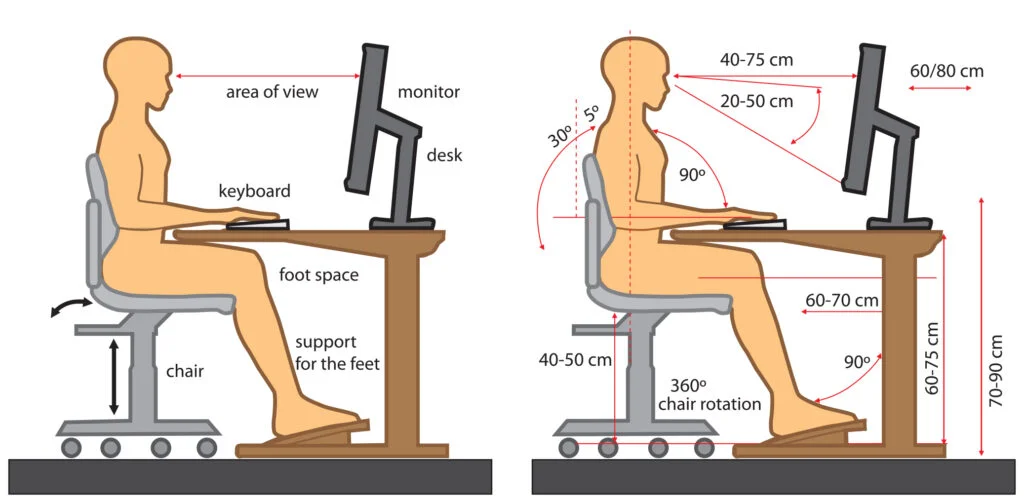
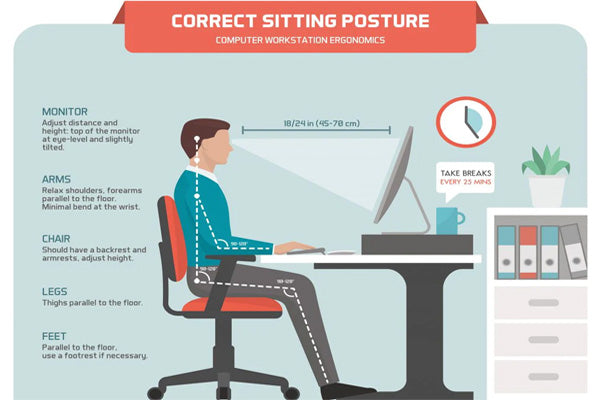
Keep your monitor about one arm’s length away, roughly 20–28 inches (50–70 cm).
Getting the correct monitor distance from eyes is the fastest way to cut eye strain, sharpen focus, and work longer without headaches. I’ve helped teams and individuals dial in their setups for years, and the results are clear: when the correct monitor distance from eyes is set right, everything else gets easier. This guide walks you through proven, practical steps you can apply in minutes.
Source: ccohs.ca
Why the correct monitor distance from eyes matters
Your eyes are not meant to lock onto a bright, close object all day. Too close and your eye muscles work harder to focus. Too far and you lean forward, strain your neck, and squint. The correct monitor distance from eyes helps your eyes relax while keeping text clear and posture neutral.
Research-backed ergonomic standards point to a sweet spot around one arm’s length. That range balances clarity, comfort, and posture. When the correct monitor distance from eyes is paired with the right screen height and text size, you reduce dry eyes, neck pain, and headaches.
In client setups, I notice a pattern. People often sit closer than they think. Fixing the correct monitor distance from eyes, then adjusting text size, solves 80% of complaints in a single session.
Source: gvsu.edu
The correct monitor distance from eyes: clear numbers you can trust
Use these ranges as a starting point, then fine-tune for your vision, screen size, and tasks. The correct monitor distance from eyes is a range, not a single number.
By screen size
- 22–24 inch monitors: 20–26 inches away
- 27 inch monitors: 24–31 inches away
- 32 inch monitors: 28–36 inches away
- Ultrawide or dual setups: aim for 28–36 inches, then curve the monitors around you
By resolution and scaling
- Standard 1080p at 24 inches: 22–26 inches feels right for most
- 1440p or 4K: you may need to sit slightly closer or increase scaling to keep text readable
- If you raise scaling, you can keep the correct monitor distance from eyes without squinting
By task
- Reading, writing, spreadsheets: standard arm’s length
- Design, photo, video work: lean toward the farther end for full-scene view
- Gaming: sit where you see the whole screen without moving your head much
Quick rule of thumb
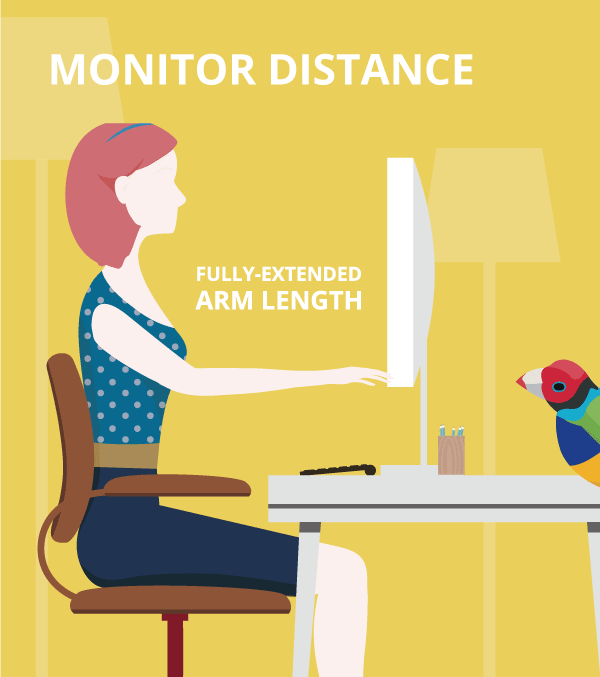
- Sit back so you can extend your arm and your fingertips just touch the screen
- If you see pixels or feel the urge to lean forward, increase distance or text size
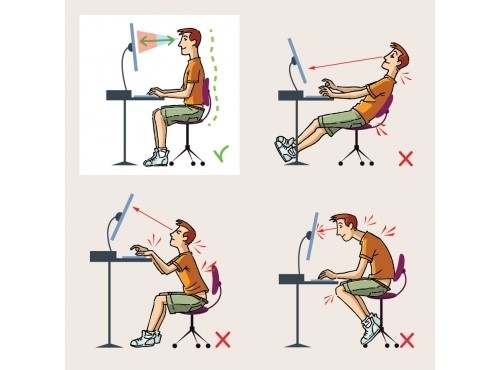
The correct monitor distance from eyes should feel effortless. If you can relax your shoulders, keep your back against the chair, and read without squinting, you are in the right zone.

Source: uperfect.com
How to measure and dial in the correct distance
You do not need fancy tools. A tape measure or your arm works fine.
- Sit back fully in your chair with a neutral posture.
- Place the monitor so your fingertips touch the screen when you extend one arm.
- Measure the distance. Aim for 20–28 inches to start.
- Adjust until text is easy to read at a relaxed posture.
- Match text size to distance. If you move back, increase font size or OS scaling.
Practical checks I use with clients:
- Blink rate test: if your eyes feel dry in 10 minutes, you may be too close.
- Posture test: if you want to lean forward, the correct monitor distance from eyes is not set or text is too small.
- Glare test: dim the room lights and check for screen reflections. Fix lighting first, then tune distance.
Source: adonmed.com
Screen height, angle, and multi-monitor tips
Distance works best with correct height and angle. Think of it like a tripod: all three must be solid.
Screen height
- Top of the screen at or slightly below eye level
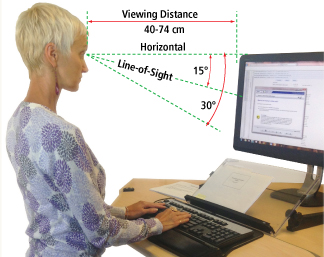
- Eyes should look 15–20 degrees downward to the center of the screen
- If you wear progressive lenses, lower the monitor a bit more
Screen angle
- Tilt the screen back 10–20 degrees so it faces your eyes
- Keep the screen perpendicular to your line of sight to reduce glare
Multi-monitor setups
- Use one primary monitor centered in front of you
- Angle side monitors in a gentle arc at the same distance as the primary
- Match height and tilt across screens
These steps lock in the correct monitor distance from eyes and reduce neck rotation strain.

Source: vantagefit.io
Special cases: glasses, contacts, kids, and older adults
Vision varies. The correct monitor distance from eyes should match your needs.
If you wear progressive or bifocal lenses
- Lower the monitor so you look through the lower part of the lens without tilting your head
- Increase text size so you can keep a relaxed posture
- Many clients benefit from computer-specific glasses tuned to their working distance
If you wear contacts or have dry eyes
- Sit at the farther end of the range and keep your blink rate up
- Add a drop or two of artificial tears if needed
Kids and teens
- Use smaller monitors or increase distance and text size
- Build breaks into study time; eyes are still developing
Older adults
- Increase OS scaling and app font sizes
- Keep lighting even and avoid glare to support contrast
In each case, the correct monitor distance from eyes should allow you to read without head tilting or forward lean.

Source: gunnar.com
Quick signs your distance is wrong and easy fixes
Common signs
- You lean toward the screen during deep work
- Your eyes feel tight or dry after an hour
- You get forehead or temple headaches by afternoon
- You squint at small text or menus
Fast fixes
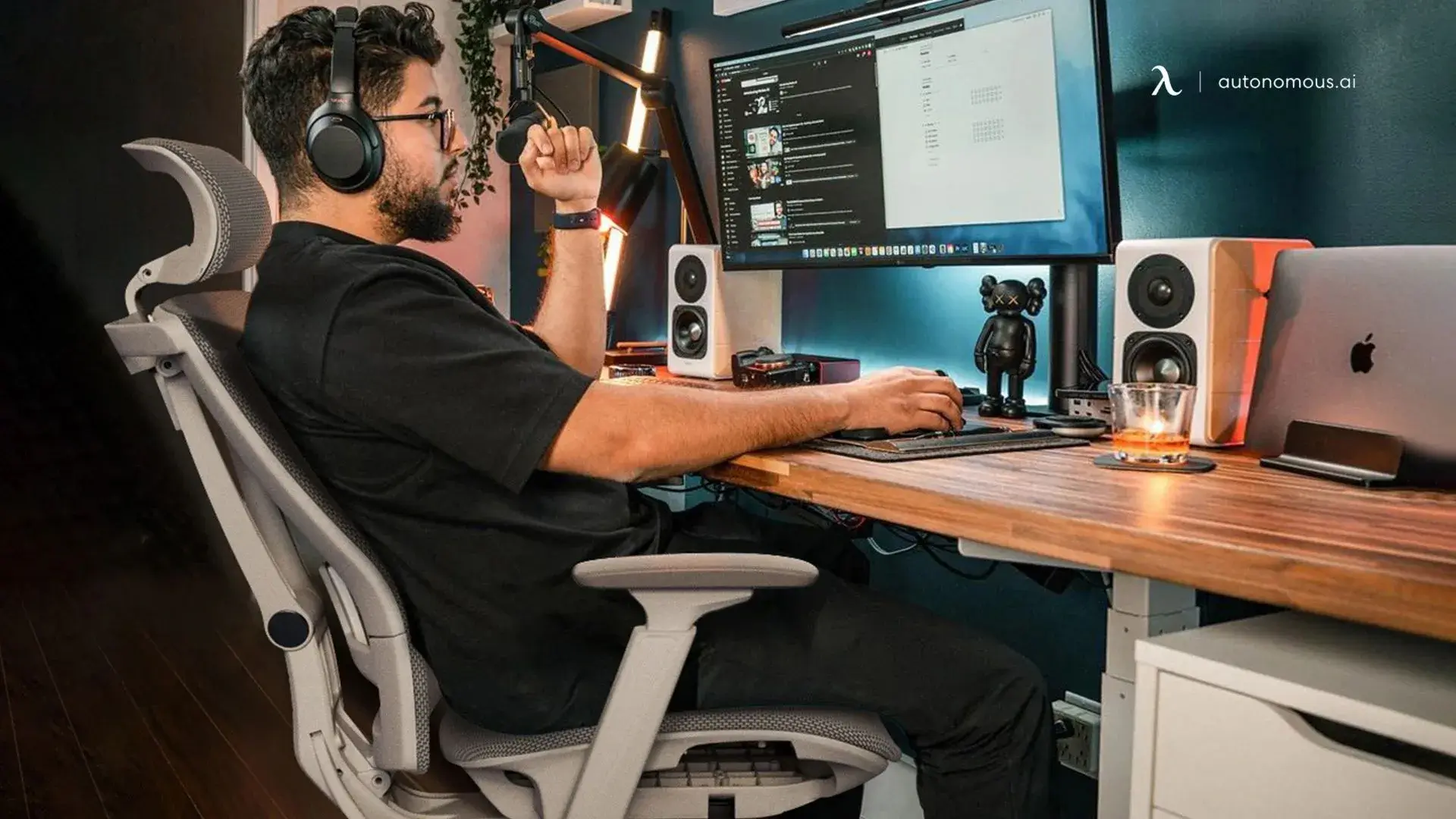
- Push the monitor back to arm’s length
- Raise font size or OS scaling by 10–25%
- Re-center the main window so your gaze stays level
- Do the 20–20–20 rule: every 20 minutes, look 20 feet away for 20 seconds
When the correct monitor distance from eyes is set well, these signs fade fast.
Source: autonomous.ai
Lighting, text size, and OS settings that support the right distance
Distance is only one part of clarity. Lighting and text size make the difference between strain and ease.
Lighting
- Use soft, indirect light to reduce glare
- Keep windows to the side rather than behind or in front of you
- Match screen brightness to room brightness
Text and scaling
- Increase OS scaling to match distance: 110–150% on Windows, 125–175% on macOS
- Use dark text on light backgrounds for most work
- Use apps’ built-in zoom to fine-tune reading comfort
Color and contrast
- Avoid overly blue-heavy modes at night
- Use night shift or warm color modes to reduce visual fatigue
These changes help the correct monitor distance from eyes deliver true comfort.
Source: com.au
Real-world examples and a 5-minute setup checklist
From my setups with developers, designers, and remote teams, the pattern is clear. The correct monitor distance from eyes, set with intent, reduces complaints more than any other tweak.
Example 1: 27-inch 1440p monitor
- Start at 26–30 inches
- OS scaling at 125–150%
- Top bezel at or just below eye level
Example 2: 32-inch 4K monitor
- Start at 30–36 inches
- OS scaling at 150–175%
- Tilt back slightly to match gaze
Example 3: Laptop with external keyboard
- Raise the laptop on a stand
- Add a keyboard and mouse
- Keep the screen at arm’s length and adjust font size
5-minute checklist to lock in the correct monitor distance from eyes
- Sit back, relax your shoulders, and place feet flat.
- Move the monitor to fingertip distance.
- Set top bezel at or slightly below eye level.
- Tilt screen 10–20 degrees back.
- Increase text size until you can read while fully relaxed.
- Do a quick glare check and adjust lights.
Frequently Asked Questions About Monitor Distance From Eyes
What is the best monitor distance for eyes?
For most people, the ideal monitor distance is about 20–28 inches (50–70 cm) — roughly an arm’s length away. At this distance, you should be able to see the whole screen clearly without leaning forward or squinting.
How far should a monitor be from your face?
A monitor should generally sit about one arm’s length away. Smaller screens can be slightly closer, while larger screens need a bit more space for comfortable viewing.
How far should a 25-inch or 27-inch monitor be from your face?
For 25–27 inch monitors, most users feel comfortable at 20–30 inches away. You should be able to read text easily while sitting back in a relaxed posture.
How far should a 32-inch monitor be from your face?
A 32-inch monitor usually works best at 24–36 inches away. The larger screen size requires a little extra distance so you can see everything without turning your head.
How far should my monitor be from my eyes for gaming?
For gaming, sit far enough to see the entire screen without moving your head too much. For most setups, this still means around one arm’s length. Comfort and clear visibility matter more than sitting extremely close.
Does monitor resolution affect viewing distance?
Yes, resolution can make a difference. Higher-resolution screens like 4K often allow you to sit slightly closer because text and images stay sharp. Still, comfort matters most. Adjust the distance so you can read clearly without eye strain.
Should the monitor be at eye level?
Yes. The top of your screen should be at or slightly below eye level. This helps reduce neck strain and keeps your posture natural while maintaining the correct viewing distance.
How do I know if my monitor is too close or too far?
If you’re leaning forward, squinting, or getting headaches, your monitor may be too far. If you need to move your head constantly to see everything, it may be too close. The right distance lets you sit back naturally and view the screen without strain.
Conclusion
A simple arm’s length, set with care, transforms your daily comfort. When you match the correct monitor height distance from eyes, tilt, text size, and lighting, your eyes and posture both relax. Start today with the 5-minute checklist, fine-tune for a week, and notice how much clearer and calmer your screen time feels. Want more practical setup tips? Subscribe, share your questions, or leave a comment with your current setup.


